Author: Kshitij Pathania, a contributor to Google Summer of Code 2024
Mentors: Jamie Shorten, Dan Selman
Project Support: Diana Lease, Matt Roberts

Fig 1. Backend architecture of AI Assistant
About the Project
This project aimed to create an AI-powered Co-Pilot for the Accord Project, embedded within the VSCode extension, to facilitate the development of smart legal contracts. The Co-Pilot assists developers by providing real-time, context-aware code suggestions, and helps automate the creation of grammar and data models from sample markdown files. This solution addresses the challenges developers face when working with complex contract templates, bridging the gap between natural language and executable code.
Problem Statement
The Accord Project Templates enable the automation of legal agreements by linking natural language legal text to computer code. These templates consist of three key components:
- Template Text: The legal clauses written in natural language.
- Template Model: The data model that represents the contract’s structure and links it to code.
- Template Logic: The executable code that implements the contract’s business logic.
However, creating these templates can be complex and time-consuming, requiring developers to frequently search for code snippets, write repetitive logic, and debug issues. This process often hinders productivity and increases the likelihood of errors. Current tools available to developers lack robust support for generating context-aware suggestions and integrating with multiple AI models. This often leads to inefficiencies, as developers have to manually handle a wide range of tasks without adequate assistance. There is a need for a more efficient solution that simplifies the template creation process by providing intelligent, AI-powered suggestions and better integration with various models.
Solution
The AI-powered Co-Pilot feature addresses these challenges by offering:
- Inline Suggestions: Provides real-time code completions and suggestions as developers type in supported languages like TypeScript and Concerto.
- Prompt Provider UI: Generates context-aware prompts based on user input and the current context within the code.
- Status Bar Item: Offers quick access to frequently used actions and provides status updates related to AI model connections.
- Configuration Settings UI: Allows users to configure AI model settings and integrate API keys seamlessly.
- Chat Panel: Enables interactions with AI models for in-depth code analysis, debugging, and question-answering.
- Grammar/Model Generation Wizard: Streamlines the process of creating grammar and data models from markdown files, ensuring consistent and accurate template generation.
Feature Overview
The AI-powered Co-Pilot in the Accord Project VSCode extension offers several key features designed to enhance developer productivity and streamline the creation of smart legal contracts. Below are detailed descriptions of each feature:
1. Inline Suggestions:
Inline suggestions offer real-time, context-aware code completions as developers type. This feature is particularly useful when writing in supported languages like TypeScript and Concerto. The Co-Pilot analyzes the current code context and provides relevant suggestions that help reduce typing effort and minimize errors.
How It Works:
As the user types, the Co-Pilot actively scans the code context and suggests code completions that are relevant to the current line or function. For example, if the user is working within a function that requires a specific contract clause, the Co-Pilot suggests the appropriate snippet to insert.

Fig 2. Screenshot showing inline suggestions in action, with the suggestion appearing automatically where the user cursor is.
2. Prompt Provider UI
The Prompt Provider UI generates context-aware prompts based on user input and the surrounding code context. This feature helps developers quickly obtain answers to specific questions or generate code snippets relevant to the current task.
How It Works:
The Prompt Provider analyzes the code context and formulates a prompt that can be sent to an AI model for code generation or debugging. The user can select the prompt from a list of pre-configured options or customize it based on their specific needs.

Fig 3. Screenshot showing Prompt Provider UI, enter your prompt in prompt box to get desired code at user’s cursor.
3. Status Bar Item
The Status Bar Item offers quick access to frequently used actions and provides status updates related to AI model connections. This feature ensures that developers can easily interact with the Co-Pilot without interrupting their workflow.
How It Works:
Located at the bottom of the VSCode interface, the Status Bar Item displays the current status of AI model connections (e.g., connected, disconnected) and allows users to access common actions like opening settings page, chat panel, model generation wizard while also giving some flexibility to user to enable-disable some copilot features.

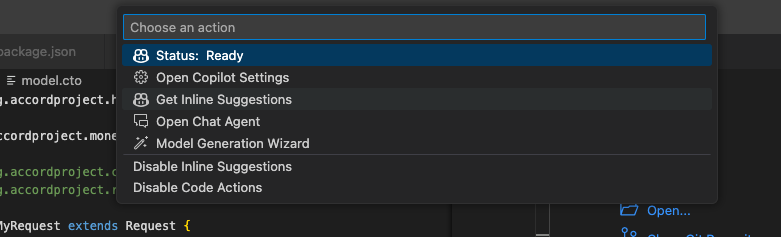
Fig 4. Screenshot showing Status Bar Item copilot button and command palette.
4. Configuration Settings UI
The Configuration Settings UI allows users to configure AI model settings and integrate API keys seamlessly. This feature provides flexibility for developers to customize their AI model preferences, ensuring that the Co-Pilot aligns with their specific needs.
How It Works:
Through the settings interface, users can select their preferred LLM providers, AI model, configure hyperparameters, and enter API keys for integration. The interface is designed to be user-friendly, enabling even non-expert users to configure settings with ease.
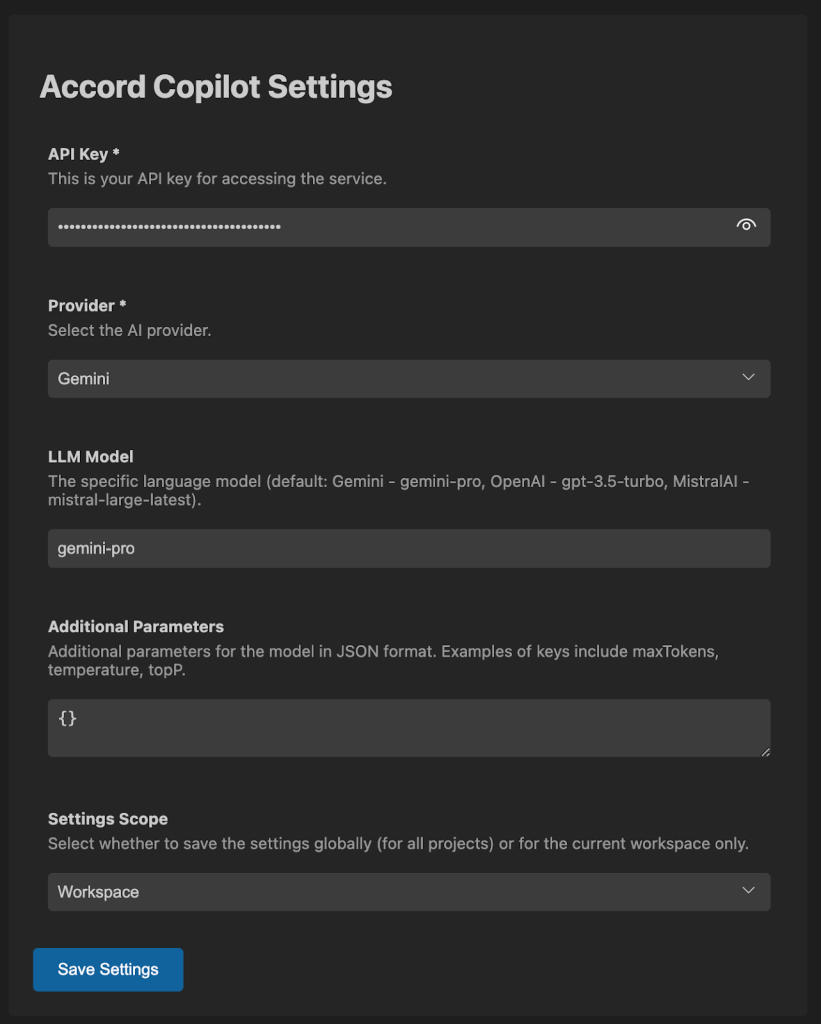
Fig 5. Screenshot showing Configuration Settings UI with various configuration options visible.
5. Chat Panel
The Chat Panel enables interactions with AI models for in-depth code analysis, debugging, and question-answering. This feature acts as a conversational interface where developers can ask questions and receive detailed responses from the AI model.
How It Works:
The Chat Panel is integrated within the VSCode interface, allowing developers to chat with the AI model in real-time. They can ask for explanations of specific code segments, request code generation, or seek debugging assistance. The AI provides responses that help clarify issues or suggest improvements.

Fig 6. Screenshot showing the Chat Panel with a conversation between the developer and the AI model.
6. Grammar/Model Generation Wizard
The Grammar/Model Generation Wizard streamlines the process of creating grammar and data models from markdown files. This feature ensures that templates are generated consistently and accurately, reducing the effort required to set up new smart contracts.
How It Works:
The wizard guides the user through the steps of generating grammar and model files based on a sample markdown file. By analyzing the structure and content of the markdown, the wizard creates the corresponding data models and grammar files, ready for use in the Accord Project.

Fig 7. Screenshot showing the Grammar/Model Generation Wizard.
Backend Architecture
The backend architecture of the AI-powered Co-Pilot is designed to efficiently handle user inputs, process them through AI models, and generate context-aware code suggestions. This section provides an in-depth explanation of the various components and workflows that enable the Co-Pilot to deliver intelligent, real-time assistance within the Accord Project VSCode extension.
Input Configuration
The system starts with gathering essential input configurations, which include:
Model Configuration:
- Provider: The AI model provider (e.g., OpenAI, Google Generative AI).
- Model Name: The specific model being used.
- API Key: The authentication key required to access the model.
- Parameters: Custom parameters like temperature, max tokens, etc., that define the model’s behaviour.
Document Details:
- Content: The current content of the document in which the user is working.
- Cursor Position: The location of the cursor within the document, essential for generating suggestions relevant to the user’s current position.
- File Extension: The type of file (e.g., .ts, .md), which helps in understanding the context.
- File Name: The name of the file being edited, useful for context-aware operations.
Prompt Configuration:
- Request Type: The type of request (e.g., inline suggestion, fixes, general suggestion).
- Language: The programming language or file format being used.
- Instructions: Specific instructions that tailor the model’s output based on user needs.
Workflow
1. Extension Activation:
The Co-Pilot is activated within the VSCode extension, ready to assist as the user writes code. This component monitors the editor for changes and triggers backend processes as needed.
2. User Writes Code:
As the user interacts with the editor, the system captures document details, including the content and cursor position. These details are sent to the backend for processing.
3. Client Output/Server Input:
The system gathers model_config, document_details, and prompt_config and sends this data to the server. This marks the beginning of the processing pipeline where the data is analyzed, and the appropriate actions are determined.
4. LLM Model Manager:
The LLM Model Manager acts as the central coordinator, ensuring the correct model is used based on the configuration. It manages the flow of data between the input, processing stages, and the final output.
5. Acquire Lock:
A lock mechanism is employed to manage concurrent requests. This ensures that only one request is processed at a time, avoiding conflicts or data corruption.
6. Check LRU Cache:
The system checks if a similar request has been processed recently. If a cache hit occurs, the suggestion is retrieved from the cache, reducing response time. Otherwise, it proceeds with further processing.
7. Cache Hit:
If the suggestion is found in the cache, it is returned, and the lock is freed.
8. Cache Miss:
If no relevant cache entry is found, the request is sent to the next stage for further processing.
9. Agent Planner:
The Agent Planner takes over when there is a cache miss, identifying the tasks required to generate a new suggestion. It acts as a guide, breaking down the steps needed to formulate the final prompt.
10. Task Identifier:
Identifies the specific tasks based on the document context and user input. This includes determining the appropriate language and model requirements.
11. Language Detection:
The system detects the language or format of the current file, ensuring that the generated suggestions are relevant to the specific coding language or document format.
12. Embedding Lookup:
Embeddings (vector representations of text) are used to match the user’s current context with relevant model templates, ensuring more accurate and context-aware suggestions.
13. Prompt Engineering & Context Enrichment:
This step enhances the original prompt with additional context from the document, ensuring that the AI model receives a well-defined and enriched prompt for generating precise code completions.
14. Final Prompt:
The final version of the prompt is prepared, combining all relevant information. This is the prompt that will be sent to the AI model for processing.
15. API Call to LLM:
The system makes an API call to the chosen AI model, passing the final prompt. The model processes the input and generates a response.
16. Filtering:
The response from the AI model is filtered to ensure that it is relevant and adheres to any additional constraints or requirements specified by the user.
17. Document Recreation (Inline Suggestion Adjustment & Model File Creation):
The generated suggestion is adjusted to fit inline with the current document. If necessary, new model files are created based on the output, ensuring seamless integration with the existing code.
18. Error Handling:
If an error occurs during the LLM API call or any other stage, the system reruns the process, attempting to resolve the issue. This ensures robustness in the system.
19. Suggestion:
Finally, the processed suggestion is presented to the user within the editor.
20. Cache Handling:
After delivering the suggestion, the system updates the LRU cache to store the result, optimising future queries.
Development Timeline
The development of the AI-powered Co-Pilot for the Accord Project was executed over several key phases, ensuring the delivery of a robust and functional tool that meets the needs of developers working with smart legal contracts. Below is a detailed timeline of the project’s milestones:
- May 2024: Project Kickoff
- Initial discussions and planning.
- Finalised project scope and objectives.
- Set up the development environment.
- Opening of issues and milestones on Github:
- June 2024: Initial Development
- Created the frontend features:
- Implemented the backend functionalities:
- Integrated both frontend and backend:
- July 2024: Further Improvements
- Incorporated suggestions from weekly meetings
- Improved code quality based on pr review comments
- Developed the Grammar/Model Generation Wizard.
- Feature developing PRs got merged into the repository
- August 2024: Bug Bash and Fixes
- Pre-release of the vscode extension with main highlight as the Copilot features
- Organised bug bash, identified issues and UX feedback
- Identified multiple issues and enhancements:
- Namespace Not Defined Error for Imported Files from Online URI: https://github.com/accordproject/vscode-web-extension/issues/52
- Temporary File Not Cleared After Validation: https://github.com/accordproject/vscode-web-extension/issues/51
- Empty and Nondeterministic Responses from LLM: https://github.com/accordproject/vscode-web-extension/issues/50
- Move File Generator to Command Palette for Improved Accessibility: https://github.com/accordproject/vscode-web-extension/issues/49
- OpenAI and Mistral Embeddings Functionality Verification Needed: https://github.com/accordproject/vscode-web-extension/issues/48
- Context File Caching Does Not Reflect Recent Changes: https://github.com/accordproject/vscode-web-extension/issues/47
- Delayed Response Times for Inline Suggestions: https://github.com/accordproject/vscode-web-extension/issues/46
- LLM Model Field Behavior Issues for OpenAI and MistralAI Providers in Configuration Settings: https://github.com/accordproject/vscode-web-extension/issues/45
- Chat Assistant Window Opened with No Functionality: https://github.com/accordproject/vscode-web-extension/issues/44
- Raised multiple PRs to fix these issues:
- https://github.com/accordproject/vscode-web-extension/pull/53
- https://github.com/accordproject/vscode-web-extension/pull/54
- https://github.com/accordproject/vscode-web-extension/pull/55
- https://github.com/accordproject/vscode-web-extension/pull/56
- https://github.com/accordproject/vscode-web-extension/pull/57
- September 2024: Future timeline
- Need to fix the pending issues
- Integrate them into the vscode extension
- Make the code ready for next Pre-release to get final feedback and proceed for final Official Release of the Concerto Vscode Extension
Get Started with Copilot: Setup and Requirements
If you wish to try out the Copilot features in the extension, you need to set up your environment with the necessary tools and API keys for the integrated AI models. Follow the steps below to ensure a smooth setup.
1. Visual Studio Code (VSCode) Installation
- Download and install the latest version of Visual Studio Code (VSCode) from here.
2. API Key Setup
The Copilot extension requires API keys from various AI providers. Obtain either of the API keys to enable the extension’s functionalities:
- OpenAI: Obtain your API key here (Paid).
- Gemini: Obtain your API key here (Free). Note: Gemini may not work in certain regions.
- Mistral: Obtain your API key here (Free up to $5). Verify the response time for optimal performance.
3. Extension Installation
- Install the downloaded beta release of the Copilot extension from the VSCode Extensions view (Ctrl/Cmd+Shift+X).
- Search for “Accord Project (Concerto)” and select version v2.0.0 (pre-release).
- In the Install button, use the dropdown to select “Install Pre-Release.”

Fig 8. Screenshot showing the Grammar/Model Generation Wizard.
4. Open a Template for Testing
- Open the template folder you are working on for testing purposes within VSCode.
- For template generation, follow the Accord Project’s documentation.
5. Configuration Settings
- Navigate to the Copilot extension settings in VSCode.
- Enter the API keys you obtained earlier and configure other settings, such as selecting an AI provider and LLM model.
Future Works
As the AI-powered Co-Pilot for the Accord Project continues to evolve, there are several areas identified for further enhancement and development logged in the vscode extension repository as issues. These future works aim to refine the Co-Pilot’s capabilities, ensuring it remains a valuable tool for developers working with smart legal contracts
Acknowledgements
I would like to extend my deepest gratitude to my mentors for their invaluable guidance throughout the GSoC program. This journey has been a tremendous learning experience, particularly in NLP, where I explored advanced concepts like Retrieval-Augmented Generation (RAG) and knowledge graphs. (KGs), applying them effectively in the development of the Copilot feature. On the frontend, delving into VS Code APIs was a new and enlightening challenge that expanded my technical arsenal. Meanwhile, on the backend, I revisited multithreading, caching strategies, and implemented sophisticated design patterns, such as the registry pattern for LLM providers, and further re-strengthened my grasp of core design principles.
I would especially like to acknowledge Dan and Jamie for their meticulous PR reviews and feedback, which were instrumental in refining the implementation. Additionally, Diana and Matt’s essential support during the pre-release and bug bash phases was crucial in identifying key issues and helped me in comprehensive end-to-end testing.
Conclusion
The AI-powered Co-Pilot within the Accord Project VSCode extension is designed to significantly improve the productivity of developers working with smart legal contracts. By providing real-time, context-aware suggestions and automating the creation of grammar and data models, the Co-Pilot helps bridge the gap between natural language and executable code, simplifying the development process.